
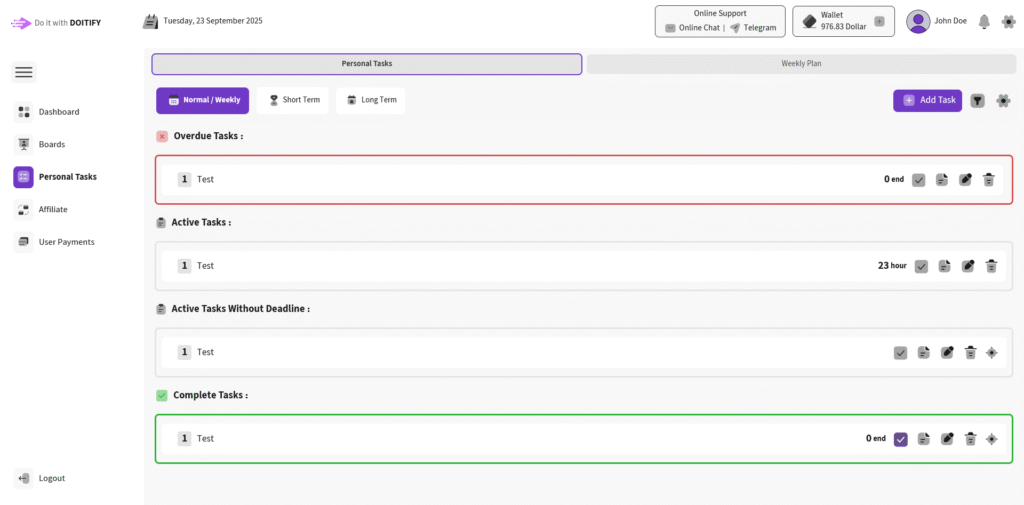
Personal Tasks is for your individual to-dos, helping you manage personal workloads alongside your team projects in Doitify.
This tool is completely free and incredibly simple to use, designed for quick setup without any complexity.
Key Features #
- Add Personal Task
- Task Categorization
- Task Scheduling
- Weekly Planning in Calendar
The page features two tabs for task and plan management: #
- Personal-Task for individual task handling.
- Weekly-Plan for scheduling weekly activities.
Personal-Task Tab #
The Personal-Task tab displays your personal tasks in three modes: Weekly, Short Term, and Long Term. Click the Add Task button to create a new task , a form opens to input task details like name and deadline , Save the task to add it to your list.
Weekly-Plan Tab #
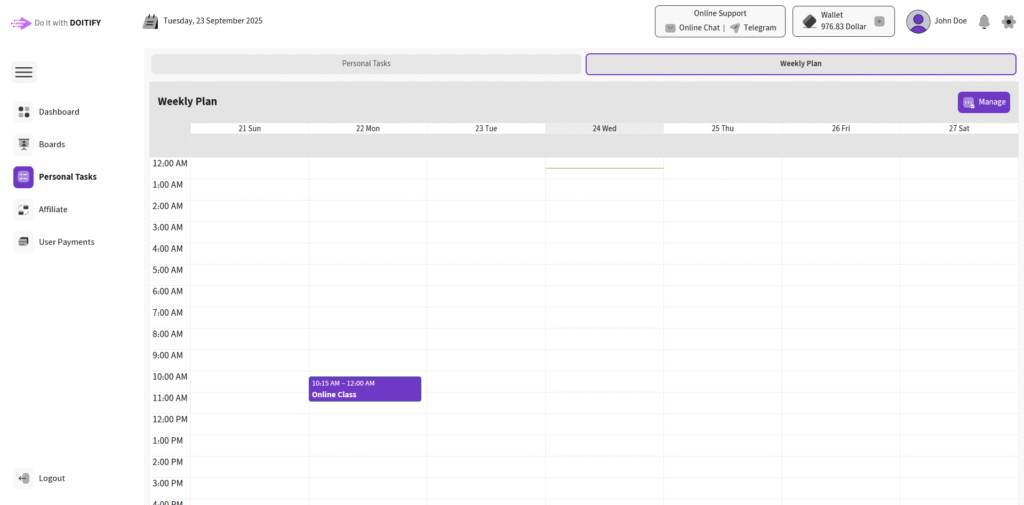
In the Weekly-Plan tab it displays the plans you’ve added on a calendar view. click the Manage button to open the manage interface.
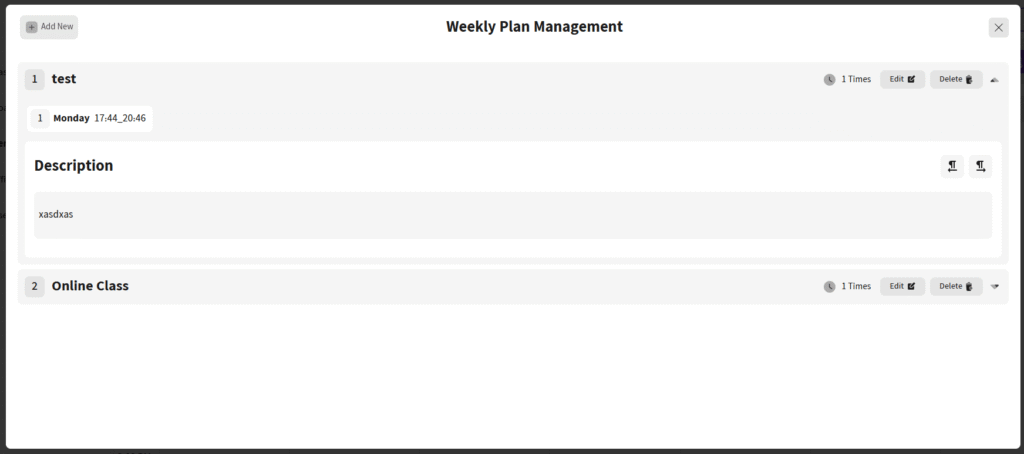
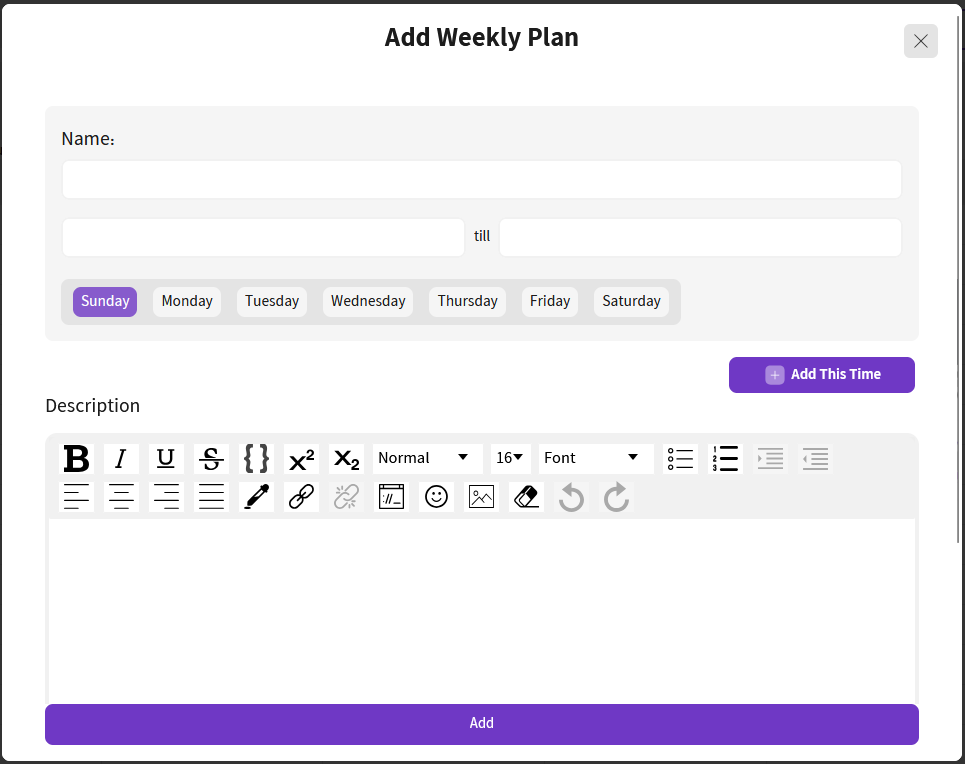
Click Add New in the top-left corner to open the Add Weekly Plan popup. The popup includes:
- Name: Enter a name for your weekly plan.
- Time Range: Use the two fields with “till” between them to set a time range (from 10:00 AM to 11:00 AM).
- Day Selection: Choose the day of the week (e.g., Monday) for the plan.
- Add This Time: Click this button to confirm the time and day.
- Description: Add a brief description below to provide more details about the plan.
Frequently Asked Questions #
Doitify Dashboard #
Where is my payments history ?
By clicking on User Payments option in menu , you can see your payment history with accurate date
What is Affiliate ?
Earn 10% of each purchase by sharing your unique Affiliate URL and Affiliate Code with others
What can Personal Tasks page do ?
Choose Normal/Weekly for regular tasks, Short Term or Long Term for specific durations, and manage your Tasks — perfect for managing your individual workload with task statuses, time tracking, and action icons (check, edit, delete). in Weekly Plan part you can add your plan and it shows on calendar
Where can I see the Boards ?
By clicking on Boards option in menu , you can see the boards and add new one
How can I complete my info ?
By clicking on your profile in header or “complete your info” button in dashboard page , you can complete your info step by step
What can I do with Wallet ?
You can charge your wallet by clicking on the plus icon, and you can also extension or upgrade your package.
What can I do in the settings?
change language , calendar type , enable/disable email/SMS notification , choose theme (Light , Dark , Customize , Image)


