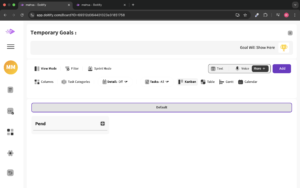
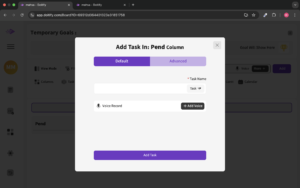
“Add Task In: Pend Column”: This popup window allows the user to add a new task specifically in the Pendcolumn.
Task Name Field: The user must input the name of the task they want to add.
Task Type Dropdown: This dropdown lets the user select the type of task.
Voice Record Option: The user can add a voice memo to the task by clicking + Add Voice.
Add Task Button: After filling in the task details, the user clicks Add Task to save the task to the Pend column.
These images highlight the process of adding tasks to a specific board column in Doitify, with options for task categorization, voice recording, and choosing different views for managing tasks.
Try Doitify for Free
Sign up and get a free permanent board to explore everything Doitify offers.
A free board — yours forever
Up to 5 team members
14 days full access to all commercial features
Explore all modules: goals, projects, tasks, chat, reports & more
After 14 days, your free board stays active with basic resources. Upgrade anytime to unlock the full power.