
To add a new task in Doitify , First go to the board you want . You can quickly create your task by clicking on the Text or Voice option then click on Add button.
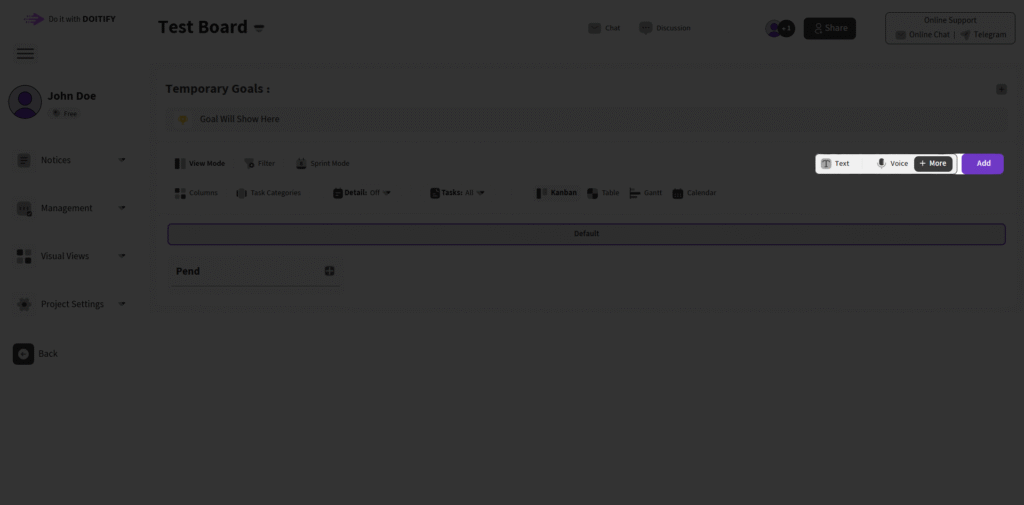
However, if you want to add your task with more details, simply click the More button.
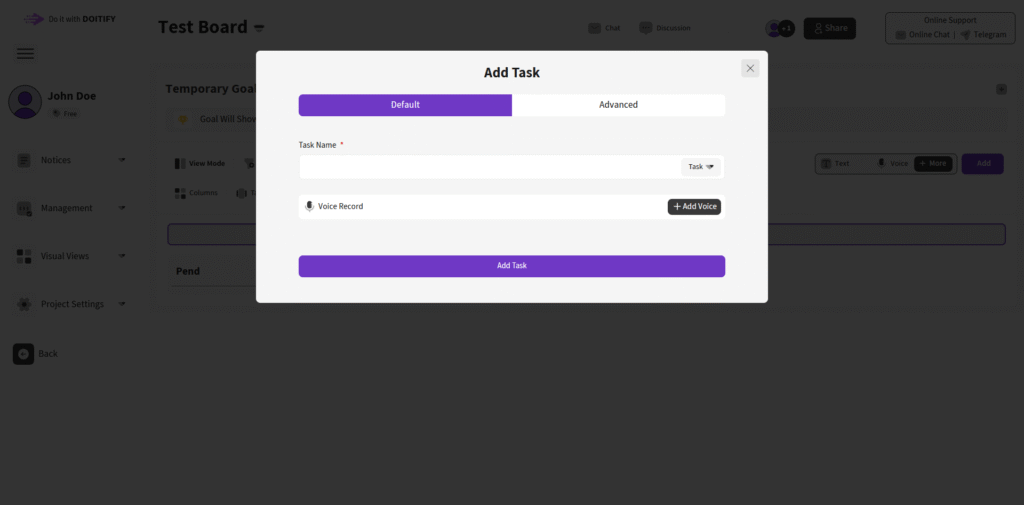
1. Default Mode #
- Purpose: This mode is perfect for quick task creation with minimal input, ideal for users who want to stay agile and add tasks on the fly during sprints or team discussions.
- Steps:
- Task Name: Enter a brief title in the “Task Name” field. A red asterisk (*) indicates it’s required.
- Task or Trade: By clicking the Trade option from the dropdown menu in “Task Name” This shifts the focus to a trade-related task, useful for sales, customer support, or resource-buying workflows.
- Voice Record: The voice record feature (by clicking on Add Voice) lets you to record your voice and save on task
- Add Task: Hit the purple Add Task button to create the task. It auto-assigns to the “Active” status and appears on the board.
- Use Case: Best for simple tasks without complex dependencies.
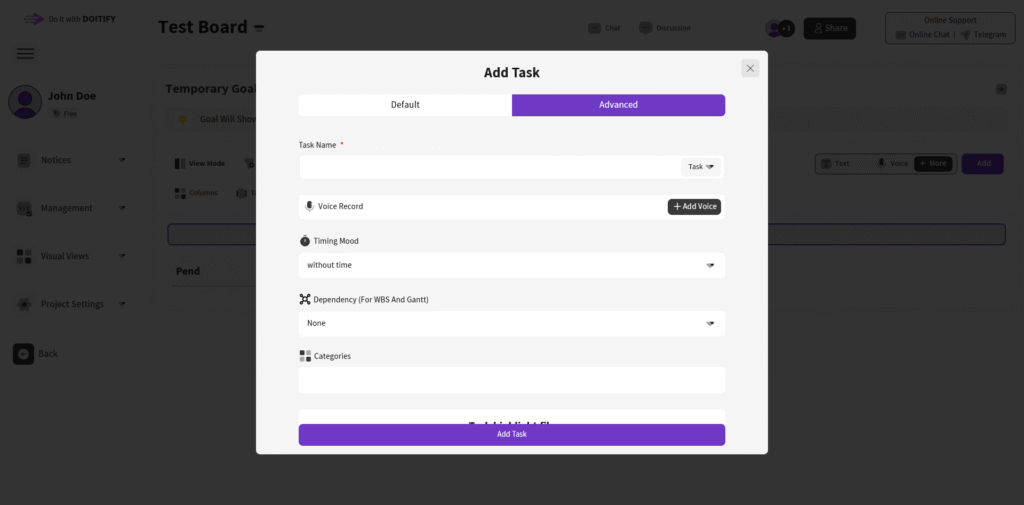
2. Advanced Mode #
- Purpose: This mode is designed for detailed task setup, giving you full control over task attributes, ideal for project managers or when integrating with features like Gantt charts.
- Steps:
- Switch to Advanced: Click on the Advanced tab (right side of the mode selector) to unlock additional fields.
- Timing Mode: Select Without time for flexible tasks , Manualy Duration for specific deadline, Date for specific start date and deadline or Loop for recurring tasks — perfect for agile sprint planning or resource management.
- Dependency: Select None for independent tasks, FS (Finish-to-Start) for the successor to start after the predecessor finishes , FF (Finish-to-Finish) for the successor to finish with the predecessor , SS (Start-to-Start) for the successor to start with the predecessor , or SF (Start-to-Finish) for the successor to finish after the predecessor starts — ideal for WBS, Gantt charts, and agile sprint alignment.
- Categories: Assign the task to a category (e.g., “Development,” “Testing”) for better organization in reports or boards.
- Task Highlight File: drag and drop files, or import from Your Device, Screencast, Camera or record your audio to Attach multimedia to your task
- Add Task: Click Add Task to save. This creates a task with all details, ready for assignment to team members, QC checks, or export.
- Use Case: Ideal for complex tasks with complex subtasks, nested workflows.
Frequently Asked Questions #
Doitify Board #
How do I log a daily report in a Board ?
From Notices drop down in the sidebar, select “Report Daily Works,” enter your work details and time, then submit.
How do I leave a Board ?
click “Leave Board” in the Members section. Owners should first transfer ownership.
How do I change Board settings ?
From the left sidebar, open Project Settings drop down and click on options like General, Package, or Automation.
How do I use Chat and Discussion on a Board ?
Chat for real-time team messaging with timestamps; Discussion for topic-based threads—use Advanced for voice, photos, or private messages, with sidebar toggle.
How do I track progress on a Board ?
Two progress lines show completion: one by task count (e.g., 6% done), another by start time to last deadline for estimated finish—view granular subtasks for detailed breakdowns.
How do I add members or teams to a Board ?
Click on Share button in header or open Project Settings drop down in side bar and click on Members , click add new members , assign roles (task manager, QC), and set permissions—groups allow bulk duty assignment for employer management.
How do I set up sprint mode on a Board ?
Click Sprint Mode in the toolbar to filter tasks by deadlines and dates, set sprint duration, and track velocity—perfect for agile techniques
How do I set up sprint mode on a Board ?
Click Sprint Mode in the toolbar to filter tasks by deadlines and dates, set sprint duration, and track velocity—perfect for agile techniques
Can I customize columns on a Board ?
Yes, click the Columns button in a board to open “board column settings”, add/edit columns or COSs, reorder by dragging, and delete unnecessary ones—default columns like “Pend” can be expanded for statuses like active or completed.
How do I add tasks to a Board ?
In the Board view, click Text, Voice, or More in the top toolbar—use Text for quick entry, Voice for dictation, or More for advanced details like subtasks, deadlines, assignments, and attachments.
How do I create a new Board ?
Click the + New Board in the Board page in Dashboard, enter a name , choose if it’s a child of an existing board (for hierarchy), and click on Create Board — it auto-sets up default columns like “Pend” for quick onboarding.
What is a Board in Doitify ?
A Board is a visual workspace for organizing tasks, subtasks, and workflows using Kanban or COSs, enabling drag-and-drop management, status tracking (active, under checking by QC, rejected, completed), and integrations with CRM, Gantt charts, and reports.


