
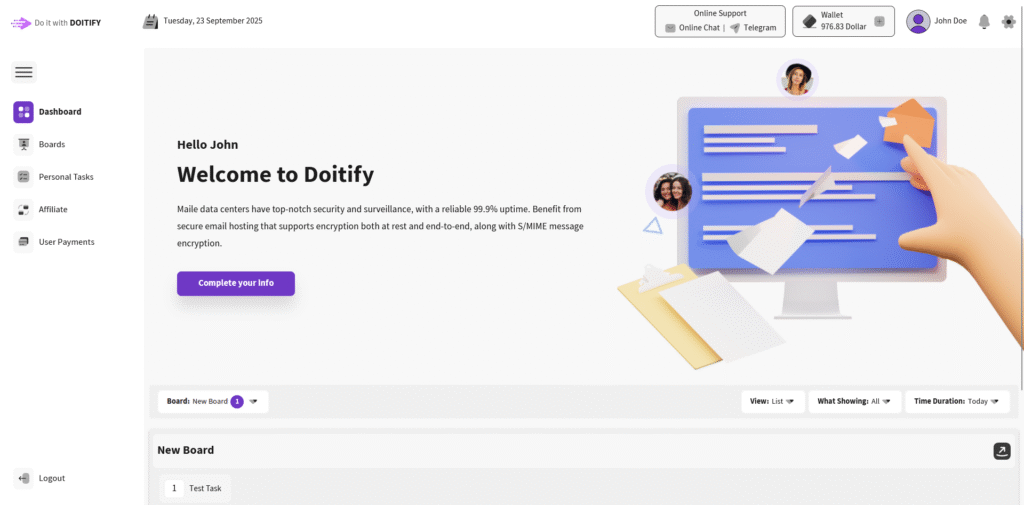
Doitify Dashboard is the central hub for managing projects, tasks, and teams.
The left sidebar provides quick access to key sections: #
- Dashboard for an overview.
- Boards to manage your boards
- Personal Tasks for individual task tracking(long term , short term).
- Affiliate for referral programs.
- User Payments for your payments details.
- A Wallet icon showing the balance.
- Online Chat and Telegram support options.
The top header includes: #
- A Wallet icon showing the balance.
Click the + button next to the Wallet to charge your account in Toman, or USDT(Tether).
you can also pay directly but we have wallet for Maybe give out prizes and charge up wallets.
- Online Chat and Telegram support options.
Click the Online Chat option in the header to open a chat button in the bottom-right corner. This allows you to ask your questions online and get real-time support.
- Profile icon
Click the Profile icon in the header to open edit profile page to edit or complete your info (First Name , Last Name , Phone Number , Email …) and you Cart info for payment from us to you (such as affiliate commission fee, etc.)
- Notification icon
The Notification page displays all reminders that have reached their due time.
- Settings icon
Click the Settings button to access all site configurations, including:
- Language: Switch between English and Persian.
- Calendar: Choose between Shamsi or Gregorian calendar.
- Notification Settings: Enable or disable Email and SMS notifications.
- Site Theme: Select Light, Dark, or Customize theme — the Customize option offers you to adjust the site’s color palette to match your own preferences
Frequently Asked Questions #
Doitify Dashboard #
Where is my payments history ?
By clicking on User Payments option in menu , you can see your payment history with accurate date
What is Affiliate ?
Earn 10% of each purchase by sharing your unique Affiliate URL and Affiliate Code with others
What can Personal Tasks page do ?
Choose Normal/Weekly for regular tasks, Short Term or Long Term for specific durations, and manage your Tasks — perfect for managing your individual workload with task statuses, time tracking, and action icons (check, edit, delete). in Weekly Plan part you can add your plan and it shows on calendar
Where can I see the Boards ?
By clicking on Boards option in menu , you can see the boards and add new one
How can I complete my info ?
By clicking on your profile in header or “complete your info” button in dashboard page , you can complete your info step by step
What can I do with Wallet ?
You can charge your wallet by clicking on the plus icon, and you can also extension or upgrade your package.
What can I do in the settings?
change language , calendar type , enable/disable email/SMS notification , choose theme (Light , Dark , Customize , Image)


