
The Project Charter section is a foundational tool for defining and documenting your project’s core elements, ensuring alignment among stakeholders. It includes key components like Project Introduction, Epics, Goals, DODs (Definition of Done), Personas, Limitations, Risks, Important Times, Rules, Shareholders, Suppliers, Legislators, Society, and Competitors. Use this to create a comprehensive project blueprint that integrates with WBS, milestones, and reports for better planning and execution.
Project Introduction #
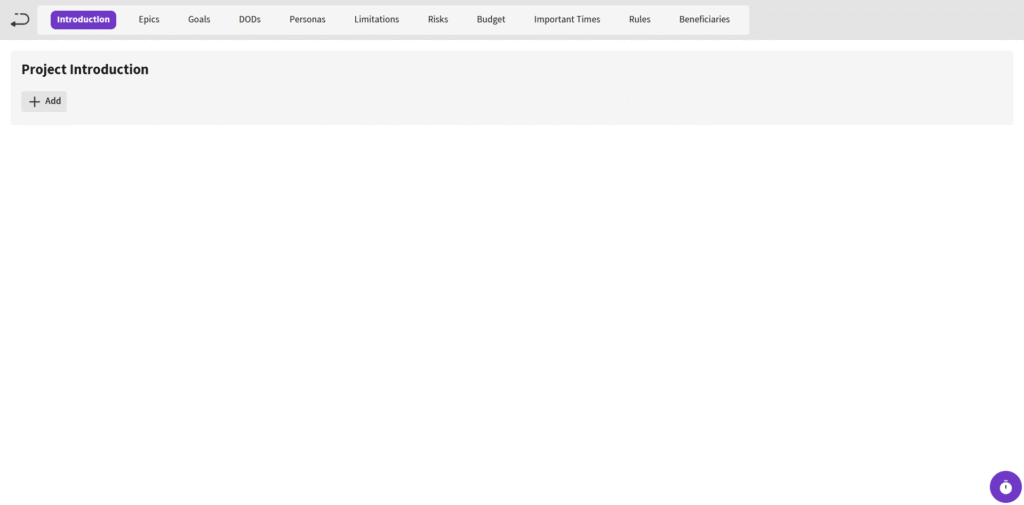
To define an introduction for your project:
- Go to the Introduction tab and click Add.
- Write your project overview in the text field.
- Click Send Introduction to save.
- Later, edit the text by clicking the Edit button (which replaces Add) and update as needed.
Project Epics #
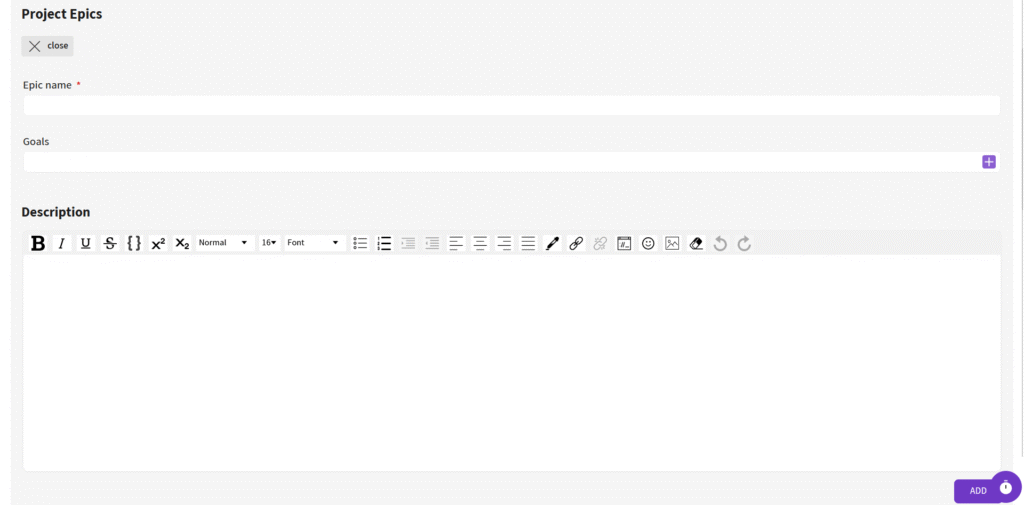
To set up Epics for your project:
- Navigate to the Epics tab and click Add.
- Fill in the Epic Name field.
- In Goals, type a goal and click the + button on the right to add it.
- Optionally, add a Description for the Epic.
- Click Add to save the Epic.
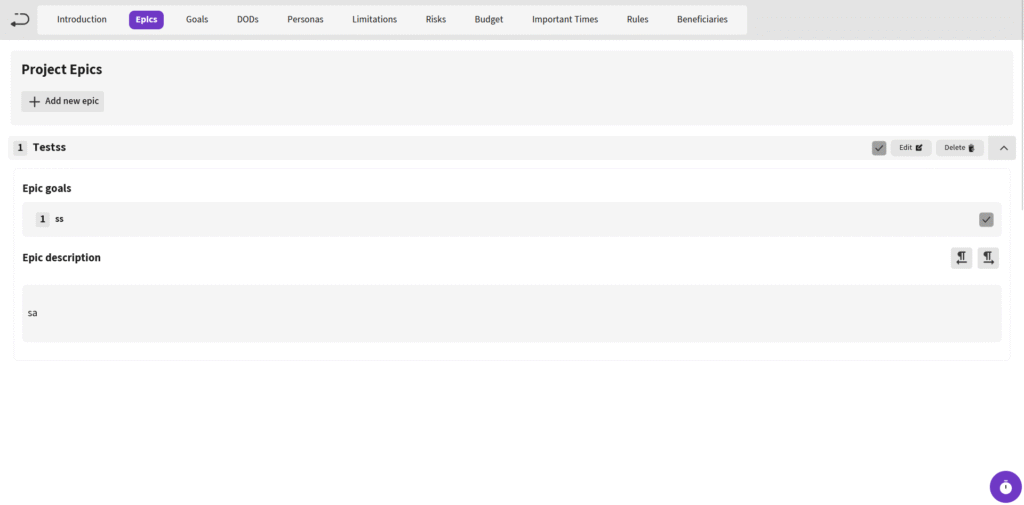
- After adding, use Edit to modify, Delete to remove, or Check to mark as complete.
- Click the down arrow icon to expand and view details, allowing individual Epic checks.
Project Goals #
To define project goals:
- Go to the Goals tab and click Add.
- Enter the goal in the Goal Name field.
- Click Add to save.
- Edit, delete, or check goals as needed for tracking progress.
Project DODs (Definition of Done) #
To create DODs for your project:
- Switch to the DODs tab and click Add.
- Fill in the DOD Name field.
- In DODs, type a done criterion and click the + button on the right to add it.
- Add a Description if desired.
- Click Add to save.
- Use Edit, Delete, or Check for management.
Project Personas #
To build personas for user representation:
- Go to the Personas tab and click Add.
- Fill in Persona Name, Age, Income, and Address.
- Add one or more Goals, Challenges, How to Help, Fears, Interests, or Job Rules using the respective fields and + buttons.
- Optionally, add a Description.
- Click Add to save.
- Edit, delete, or check personas afterward.
Project Limitations #
To outline project limitations:
- Navigate to the Limitations tab and click Add.
- Enter the limitation name in Limitation Name.
- Add one or more Reasons and Consequences using the fields and + buttons.
- Optionally, add a Description.
- Click Add to save.
- Manage with Edit, Delete, or Check.
Project Risks #
The Risks tab works similarly to Limitations:
- Click Add and enter the risk name in Risk Name.
- Add Reasons and Consequences with + buttons.
- Optionally, include a Description.
- Click Add to save.
- Use Edit, Delete, or Check for updates.
Project Important Times #
To mark key timelines:
- Go to the Important Times tab and click Add.
- Specify the time/date.
- Add one or more Done Works using the field and + button.
- Optionally, add a Description.
- Click Add to save.
- Edit, delete, or check as needed.
Project Rules #
To define project rules:
- Switch to the Rules tab and click Add.
- Enter the rule name in Rule Name.
- In Rules, type a rule and click the + button to add it.
- Add a Description for each.
- Click Add to save.
- Manage with Edit or Delete.
Beneficiaries #
The Beneficiaries tab provides links to related sections:
- Old Personas: View historical personas.
- Teams: Access board members and groups for stakeholder mapping.
Project Shareholders #
To document shareholders:
- Go to the Shareholders tab and click Add.
- Fill in Name, Role, Share Percentage, and Invested Money.
- Optionally, add personal details like Phone, Email, and Address.
- Click Add to save.
- Edit or delete entries as required.
Project Suppliers #
Similar to Shareholders:
- In the Suppliers tab, click Add.
- Enter supplier details like Name, Contact Info, Services, and Terms.
- Click Add to save.
- Update via Edit or Delete.
Legislators and Regulatory Authorities #
To outline legal aspects:
- Go to the Legislators tab.
- For Legislator Laws, click Add New to define a law, including name and compliance details.
- Click Add to save.
- Edit or delete laws for ongoing management.
Beneficiaries Society #
To address societal impact:
- In the Society tab, enter the society name in Society Name.
- Click Add New for Society Effects, fill in Effect Name and description below.
- Click Add to save.
- Manage effects with Edit or Delete.
Project Competitors #
To analyze competition:
- Go to the Competitor tab and click Add.
- Enter the competitor name in Competitor Name.
- Click Add New next to Competitor Threats to note threats and details.
- Click Add to save.
- Edit or delete competitors as market conditions change.
This Charter integrates with goals, milestones, and reports for a holistic project view. For advanced setups, link to WBS or automation rules.
Frequently Asked Questions #
Doitify Board #
How do I log a daily report in a Board ?
From Notices drop down in the sidebar, select “Report Daily Works,” enter your work details and time, then submit.
How do I leave a Board ?
click “Leave Board” in the Members section. Owners should first transfer ownership.
How do I change Board settings ?
From the left sidebar, open Project Settings drop down and click on options like General, Package, or Automation.
How do I use Chat and Discussion on a Board ?
Chat for real-time team messaging with timestamps; Discussion for topic-based threads—use Advanced for voice, photos, or private messages, with sidebar toggle.
How do I track progress on a Board ?
Two progress lines show completion: one by task count (e.g., 6% done), another by start time to last deadline for estimated finish—view granular subtasks for detailed breakdowns.
How do I add members or teams to a Board ?
Click on Share button in header or open Project Settings drop down in side bar and click on Members , click add new members , assign roles (task manager, QC), and set permissions—groups allow bulk duty assignment for employer management.
How do I set up sprint mode on a Board ?
Click Sprint Mode in the toolbar to filter tasks by deadlines and dates, set sprint duration, and track velocity—perfect for agile techniques
How do I set up sprint mode on a Board ?
Click Sprint Mode in the toolbar to filter tasks by deadlines and dates, set sprint duration, and track velocity—perfect for agile techniques
Can I customize columns on a Board ?
Yes, click the Columns button in a board to open “board column settings”, add/edit columns or COSs, reorder by dragging, and delete unnecessary ones—default columns like “Pend” can be expanded for statuses like active or completed.
How do I add tasks to a Board ?
In the Board view, click Text, Voice, or More in the top toolbar—use Text for quick entry, Voice for dictation, or More for advanced details like subtasks, deadlines, assignments, and attachments.
How do I create a new Board ?
Click the + New Board in the Board page in Dashboard, enter a name , choose if it’s a child of an existing board (for hierarchy), and click on Create Board — it auto-sets up default columns like “Pend” for quick onboarding.
What is a Board in Doitify ?
A Board is a visual workspace for organizing tasks, subtasks, and workflows using Kanban or COSs, enabling drag-and-drop management, status tracking (active, under checking by QC, rejected, completed), and integrations with CRM, Gantt charts, and reports.


